
Migrating to the new Freedom sign-in
We’ve retired phone number and username sign-ins to make your Freedom account more secure. From now on you’ll sign in with an email and password, plus a one-time verification code (multi-factor authentication). The whole one-time migration takes about 5 minutes. This guide walks you through exactly what to do.
What’s changing?
Historically you signed in to My Freedom using your Freedom mobile number or a username. To keep your account safer, we’ve switched to industry-standard authentication:
- Old way — Freedom mobile number (or username) + password.
- New way — personal email + password + a 6-digit verification code delivered by email or SMS on every new device.
Your rate plan, phone number, billing history and everything else on your account stay exactly as they were. You’re only creating a new way to sign in.
Why we did this: phone-number logins are vulnerable to SIM-swap attacks and shared account credentials. Email + password + MFA is the standard used by banks, government portals and most secure services.
Before you start
Have these handy before you begin. It’ll make the migration flow much faster:
- Your Freedom mobile phone number (10 digits, the one currently on your account).
- Your 4-digit account PIN — the one you set at activation. If you’ve forgotten it, tap Forgot PIN? during the flow to reset it.
- A personal email address you regularly check. Avoid using a work email you might lose access to.
- Access to either that email inbox or the phone that can receive SMS for the verification codes.
Step 1 · Create your email login
Head to freedommobile.ca and click Sign in. You’ll see a banner explaining that phone-number sign-ins are retired. Click Please create your email login.
On the Create your account screen, fill in:
- Your email address.
- A password. It must have at least 8 characters, one uppercase letter, one lowercase letter and one number.
- Confirm your password in the third field.
The Password requirements panel shows a green check next to each rule as you meet it. When all five are green, tap Continue.
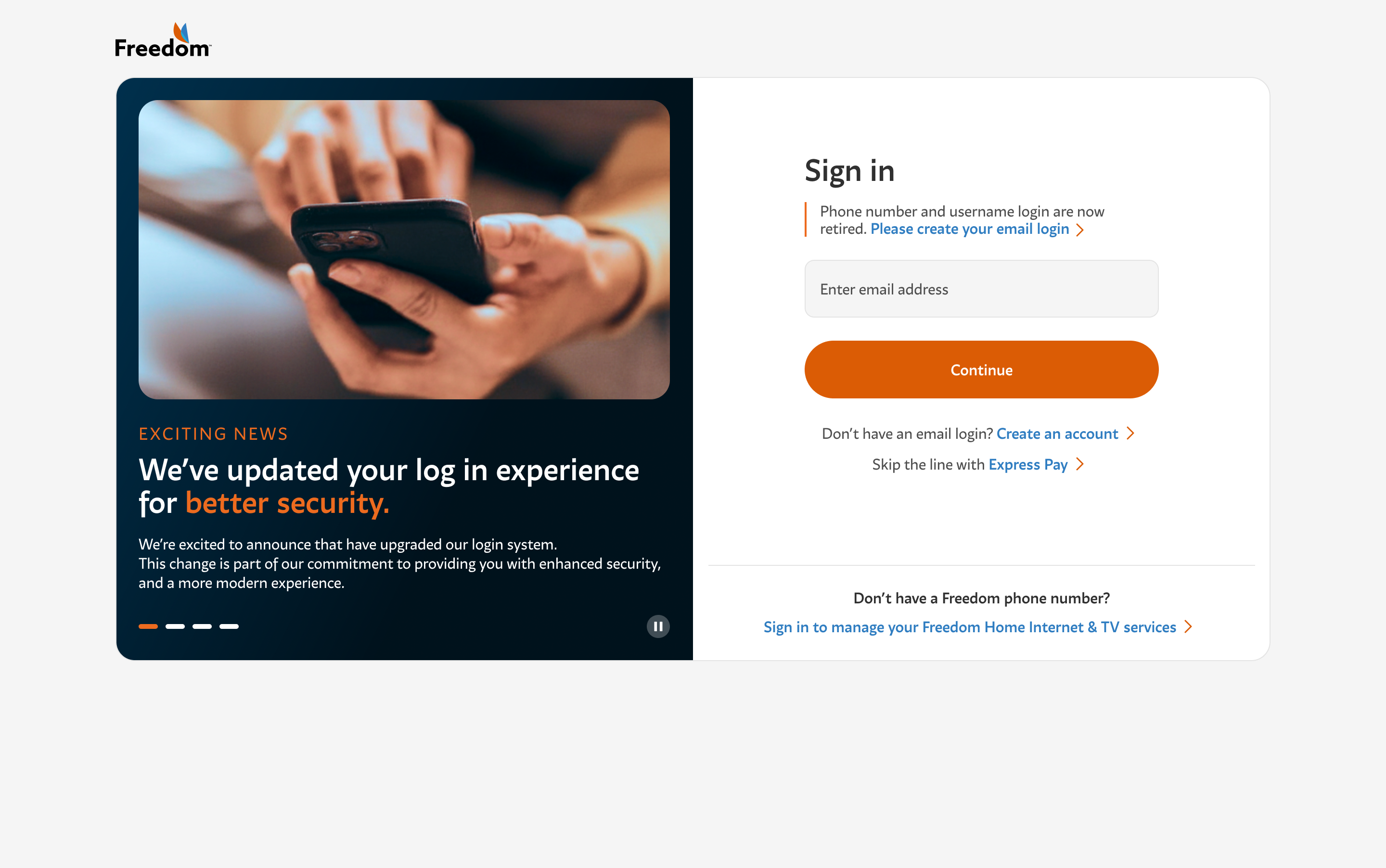
Tip: pick a password you don’t use anywhere else. A password manager (iCloud Keychain, 1Password, Bitwarden, Chrome or Firefox’s built-in one) will generate and remember one for you.
Step 2 · Verify your email
Freedom will send a 6-digit code to the email you just entered. Open your inbox — it usually arrives within seconds.
Copy the code, come back to the sign-in tab, and enter it in the Enter code field. Tap Continue.
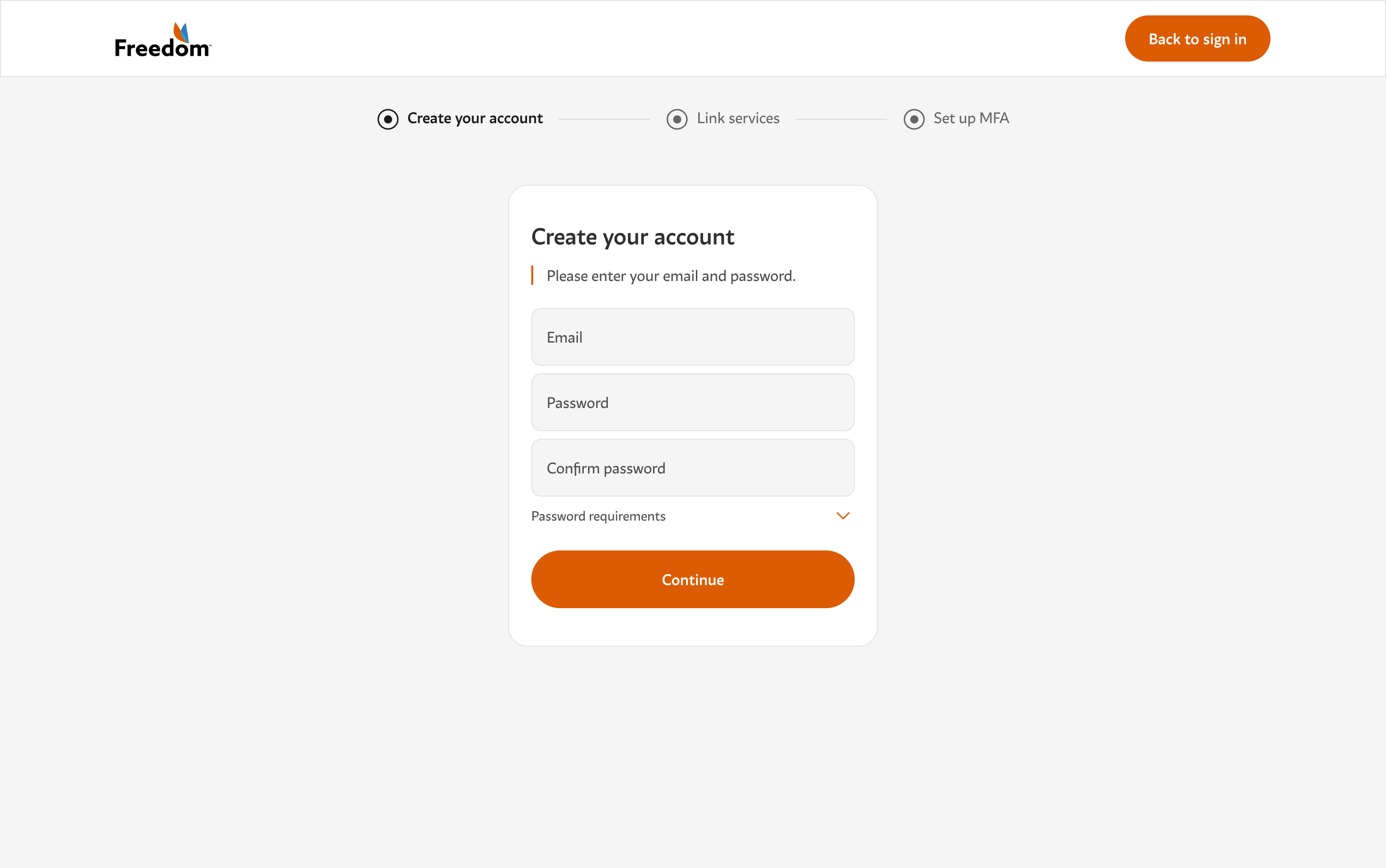
Can’t find the email? Check your spam or promotions folder. If it’s not there within 2 minutes, tap Resend in the flow.
Step 3 · Link your existing services
Because you already have a Freedom Mobile plan, you now need to link that plan to your new email login. On the Customer type screen, tap Link your services.
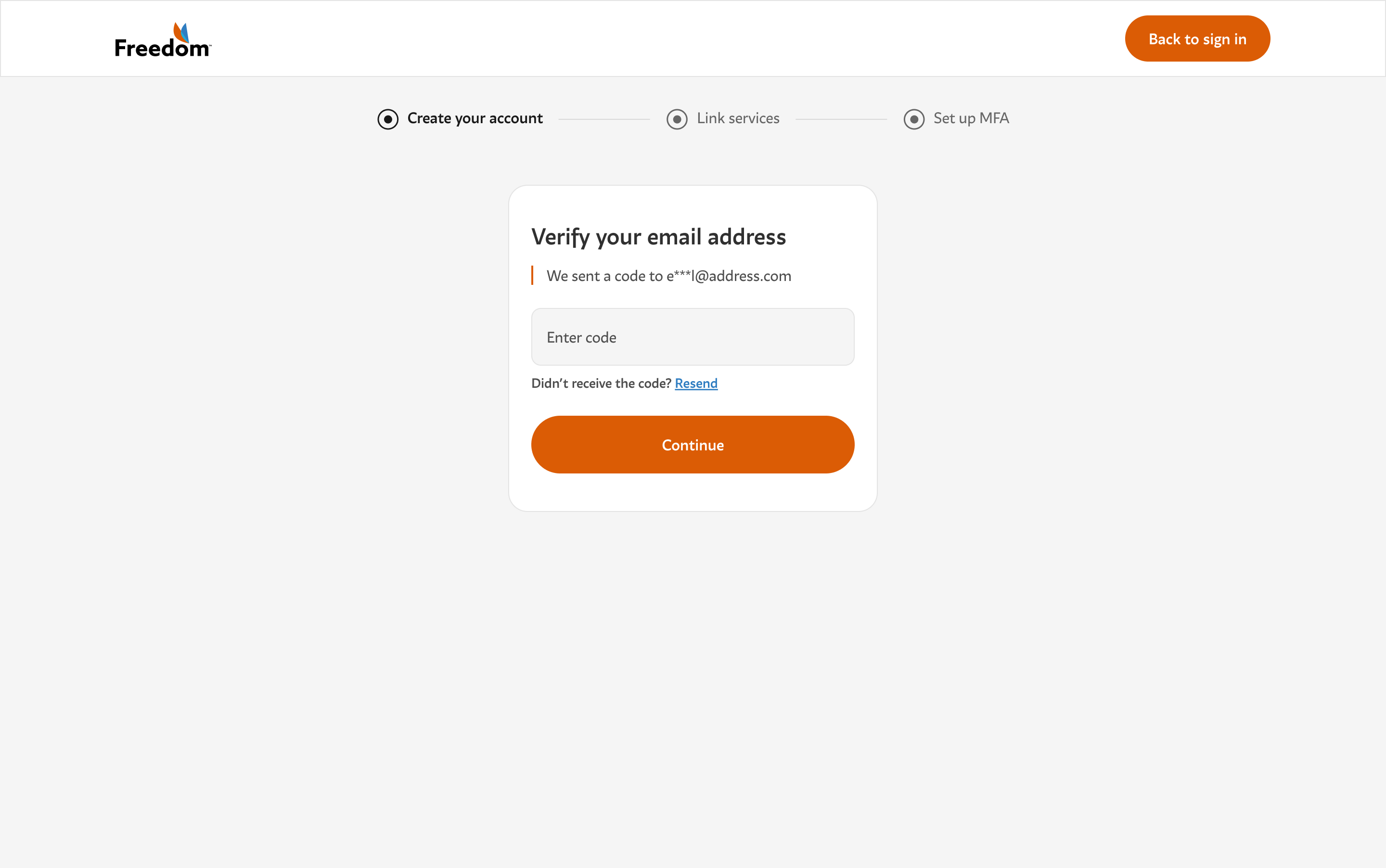
On the next screen, enter:
- Your Freedom mobile phone number (10 digits, no country code).
- Your 4-digit account PIN.
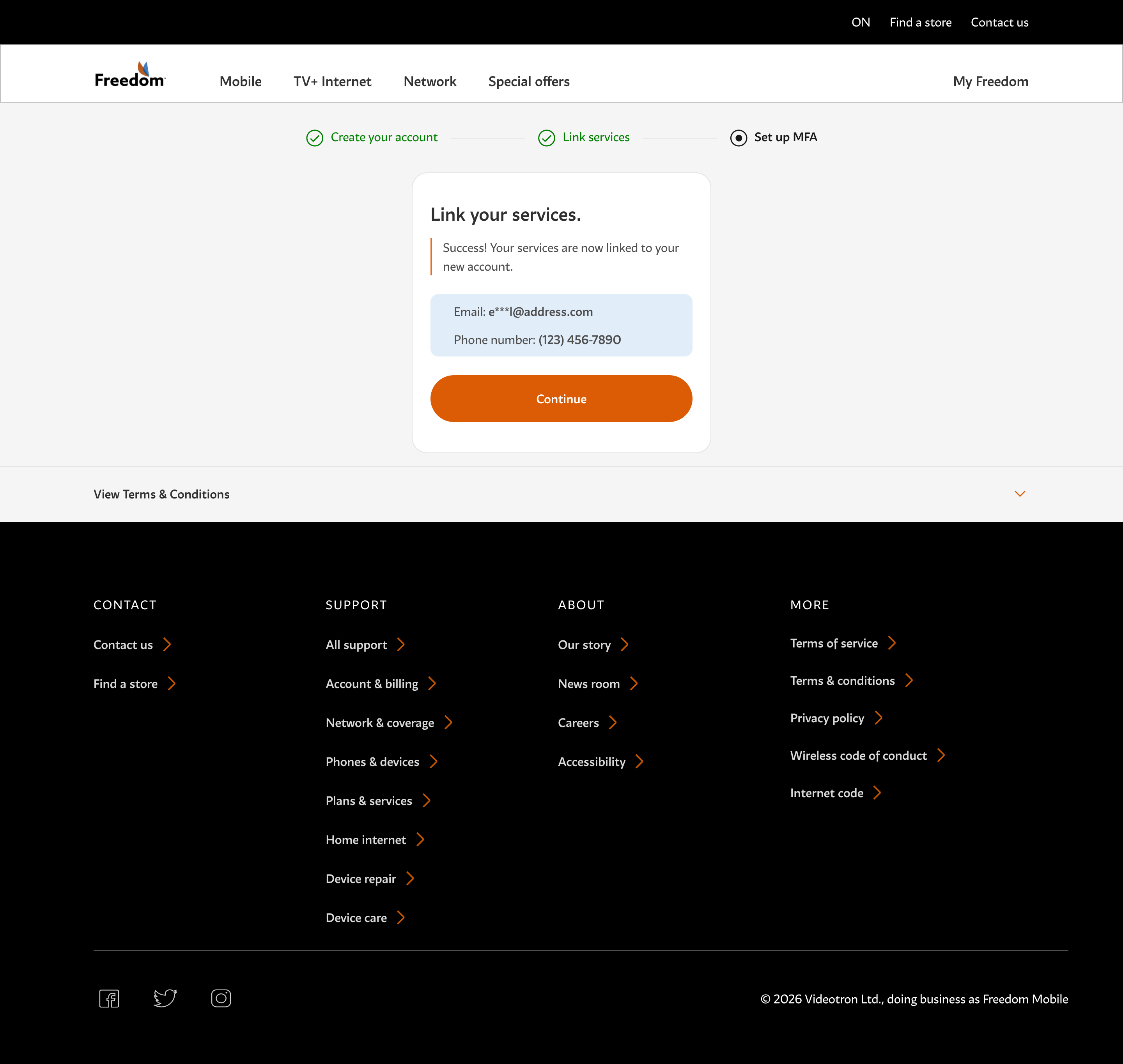
Tap Continue. We’ll then ask how you’d like to confirm ownership of that line — usually by SMS to the same number or an email to the address you just verified. Enter the 6-digit code and tap Continue again.
Once verified, you’ll see a Success! confirmation showing which email and phone number are now linked to your account.
Step 4 · Set up multi-factor authentication (MFA)
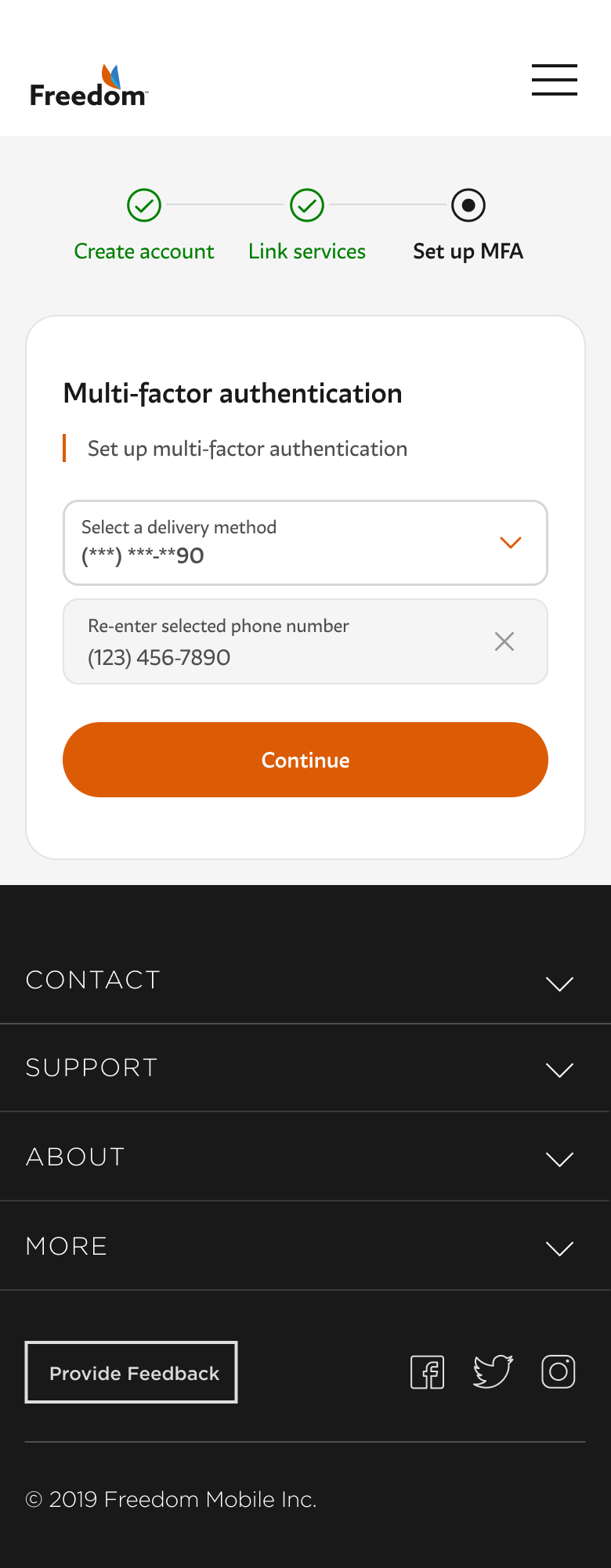
The last step is choosing how you’d like to receive future security codes. You have two options:
- Email — codes will be sent to the email you just verified. No extra setup needed.
- SMS text message — codes will be sent to one of the linked phone numbers on your Freedom account. Pick which number should receive them.
Enter the confirmation code we send you, tap Continue, and you’re done.
Do I need this on every sign-in? No. You’ll enter an MFA code the first time you sign in on a new device or after clearing your cookies. Trusted devices stay signed in for up to 30 days between prompts.
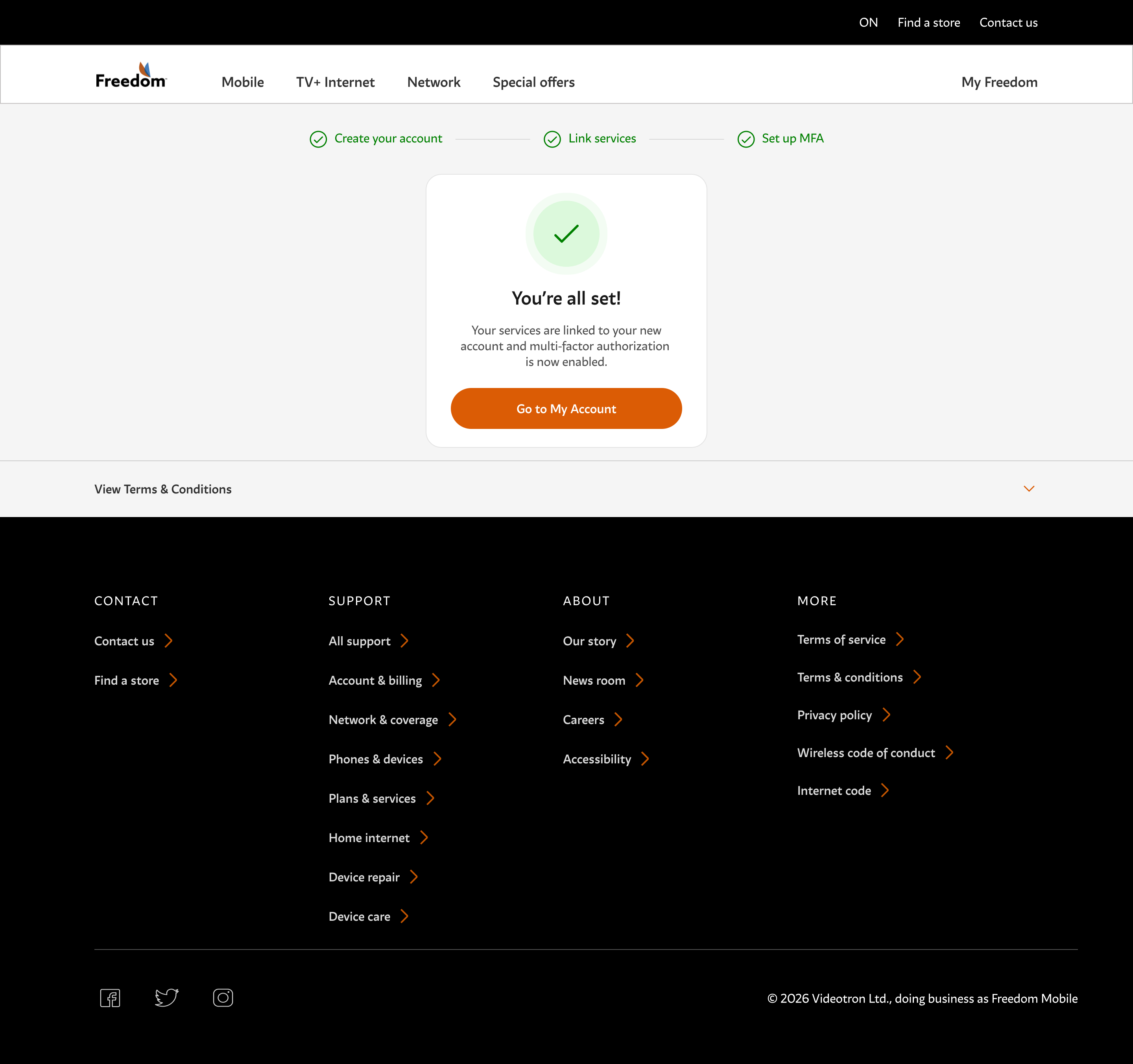
You’ll see the You’re all set! screen — tap Go to My Account and you’re back to your dashboard with everything as it was.
Troubleshooting
I never received the email verification code
Check your spam and promotions folders. Add noreply@freedommobile.ca to your contacts. If it’s still missing after 2 minutes, tap Resend. If it never arrives, your inbox might be full or blocking us — try a different email.
“Your phone number should be 10 digits”
Enter your Freedom number without the leading 1 (country code) and without spaces or dashes. For example, if your number is 1 (416) 555-1234, enter 4165551234.
“Your PIN must be 4 digits” or the PIN is wrong
The PIN is the 4-digit number you set when you activated your Freedom line — not the password you just created. If you’ve forgotten it, tap Forgot PIN? during Step 3 to reset it. You’ll receive reset instructions on your Freedom line.
I’m already signed in and don’t see the migration prompt
Sign out of My Freedom, then sign back in. The prompt appears on the sign-in screen, not on the dashboard.
I signed up with the wrong email
Complete the flow, then change your login email from My Account › My profile. You’ll need to re-verify the new address.
Frequently asked questions
Do I have to migrate right now?
You’ll be prompted the next time you sign in. You have until the phase-out date announced in your account email to complete the migration. After that, phone-number sign-ins will stop working entirely.
Will my bill or plan change?
No. This is only a change to how you sign in. Your rate plan, phone number, billing cycle, add-ons, device financing, and everything else stay exactly as they were.
Do I need to redo this on every device?
No. Once you’ve migrated on any device, your credentials work everywhere. You’ll simply enter your MFA code the first time you sign in on each new device.
Can I use a work email for my sign-in?
You can, but we recommend a personal email. If you change jobs and lose access to your work inbox, you’ll have a harder time recovering your Freedom account.
What if I share my Freedom line with someone else in my household?
Each Freedom account should have one primary sign-in email. If several people share the same line, decide who will own the login and use a shared email address (like a household Gmail) if that helps.
I lost access to my email and my phone. Now what?
Contact Freedom support at 1-877-946-3184 or visit a Freedom store with valid ID. We can manually verify your identity and reset your account.
Can I use an authenticator app (Google Authenticator, Okta Verify) instead of email or SMS?
Not yet. In this initial release we support email and SMS. Authenticator app support is on our roadmap for a future update.
Were these results helpful?
Don’t see what you’re looking for?
Our support team is happy to walk you through the migration one step at a time.